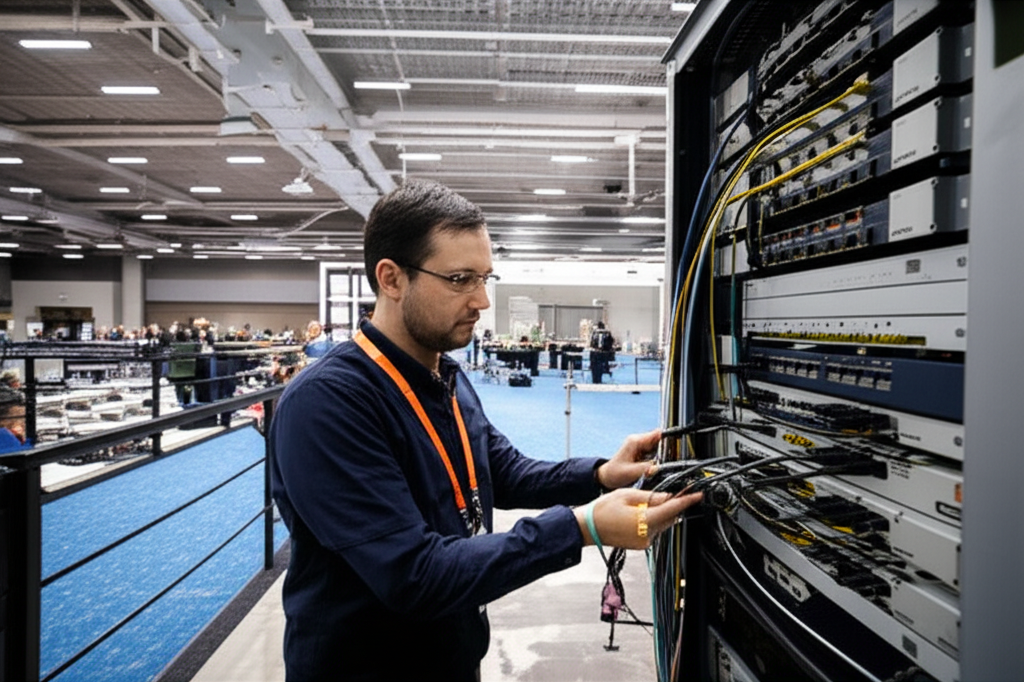
Modern office WiFi installation has become a critical infrastructure investment that directly impacts productivity, security, and employee satisfaction. With hybrid work models now permanent and bandwidth demands increasing 40% annually, a poorly designed wireless network costs businesses far more than professional installation. This comprehensive guide examines every aspect of pasang wifi (WiFi installation) for offices—from initial site assessment and hardware selection to enterprise-grade security implementation and ongoing optimization. Whether you are configuring WiFi for a 20-person startup in Bangsar, deploying enterprise wireless across a multi-floor corporate headquarters in KLCC, or upgrading outdated infrastructure in a Singapore CBD office, this deep analysis provides the technical foundation for making informed decisions about your office connectivity investment.
The Business Case for Professional Office WiFi Installation
Why Office WiFi Quality Directly Impacts Your Bottom Line
- →Productivity Loss: Employees lose 20-30 minutes daily to connectivity issues, costing RM 3,000-8,000 per employee annually in lost productivity
- →Security Vulnerabilities: Consumer-grade WiFi creates attack vectors that expose sensitive business data to breaches averaging RM 150,000 in remediation costs
- →Scalability Limitations: Poorly designed networks require complete replacement rather than incremental upgrades, wasting initial investment
- →Client Impressions: Unreliable guest WiFi damages professional credibility during client visits and video conferences
- →IoT Device Explosion: Modern offices connect 50+ wireless devices per employee (laptops, phones, printers, smart displays, IoT sensors)
The transformation of office WiFi from a convenient amenity to mission-critical infrastructure has occurred rapidly. Just five years ago, most Malaysian offices operated comfortably with 100 Mbps shared connections and a handful of consumer-grade routers. Today's requirements have fundamentally changed: cloud-based productivity suites (Microsoft 365, Google Workspace), constant video conferencing (Zoom, Teams, Meet), real-time collaboration tools (Slack, Notion, Figma), and bandwidth-intensive applications have made wireless connectivity as essential as electricity.
When businesses evaluate pasang wifi options, the temptation to minimize upfront costs often leads to purchasing consumer networking equipment from retail stores. This approach invariably creates expensive problems: dead zones requiring subsequent remediation, security breaches necessitating emergency upgrades, and performance limitations that throttle productivity. Professional office WiFi installation represents an investment with measurable returns: reduced IT support tickets, improved employee satisfaction scores, enhanced security posture, and infrastructure that scales with business growth.
Pre-Installation Site Assessment: The Foundation of Success
Professional WiFi Site Survey Methodology
Every successful office WiFi installation begins with comprehensive site assessment. This process identifies coverage requirements, capacity needs, physical constraints, and potential interference sources before any equipment is purchased. Skipping this assessment virtually guarantees suboptimal results—network architects cannot design systems without understanding the environment they will operate in.
A professional site survey for office WiFi installation examines multiple dimensions: physical space characteristics (square footage, floor plans, ceiling heights, construction materials), user density patterns (peak concurrent users, device types, bandwidth requirements), existing infrastructure (internet connectivity, cabling, power availability), and RF environment (neighboring networks, interference sources, spectrum utilization). Each factor influences hardware selection, placement strategy, and configuration parameters.
Physical Environment Assessment
Building Materials & RF Impact
- Concrete walls (150-200mm): 10-15 dB signal attenuation—requires APs on both sides
- Glass partitions: 3-6 dB attenuation—minimal impact on coverage
- Drywall/plaster: 2-4 dB attenuation—easily penetrated by WiFi signals
- Elevator shafts: Complete RF blockage—requires dedicated coverage solutions
- Metal filing cabinets/racks: Significant reflection and shadowing
- Floor-to-ceiling heights: 3m+ allows ceiling-mounted APs; lower heights may need wall mounting
Capacity Planning Variables
- Peak concurrent users: Typically 70-80% of total employee count
- Devices per employee: Average 2.5-3.5 (laptop, phone, tablet, smartwatch)
- Bandwidth per user: 10-25 Mbps for general office; 50+ Mbps for video-heavy roles
- Guest access requirements: 20-30% of main network capacity recommended
- IoT device explosion: Printers, cameras, sensors, smart displays add 20+ devices
- Growth planning: Size for 150% of current needs for 3-year lifecycle
Defining Coverage Zones and Performance Requirements
Modern office WiFi design categorizes space into coverage zones with specific performance requirements. Not all office areas need identical connectivity—reception areas may prioritize guest access, conference rooms demand high bandwidth for video calls, and warehouse spaces might only need basic connectivity for inventory scanning. Understanding these zones prevents over-engineering some areas while under-serving others.
| Zone Type | Min Signal | Target Bandwidth | Special Requirements |
|---|---|---|---|
| Workstations/Open Office | -65 dBm | 25 Mbps per user | High density, seamless roaming |
| Conference Rooms | -60 dBm | 100+ Mbps shared | Video call optimized, low latency |
| Executive Offices | -60 dBm | 50+ Mbps dedicated | Priority QoS, dedicated VLAN |
| Guest Reception | -70 dBm | 10 Mbps per user | Isolated network, captive portal |
| Common Areas/Break Rooms | -70 dBm | 10 Mbps per user | Basic browsing, streaming |
| Warehouse/Storage | -75 dBm | 5 Mbps per device | Scanning devices, inventory systems |
Hardware Selection: Matching Equipment to Office Requirements
Enterprise Access Point Selection Strategy
Access points represent the most visible component of office WiFi infrastructure—and the most critical for user experience. Enterprise-grade APs differ fundamentally from consumer units in their ability to handle high client densities, support advanced security protocols, integrate with management platforms, and maintain performance under load. The investment in professional APs pays dividends through longer lifespan, lower support costs, and superior user satisfaction.
WiFi 6 (802.11ax): The Current Standard for Office Deployment
WiFi 6 has become the minimum standard for professional office WiFi installation, replacing WiFi 5 (802.11ac) which now belongs to legacy infrastructure. The technological advantages directly address modern workplace challenges: OFDMA (Orthogonal Frequency Division Multiple Access) enables simultaneous communication with multiple devices rather than sequential servicing; MU-MIMO allows upstream and downstream multi-user transmissions; Target Wake Time extends battery life for mobile devices; and 1024-QAM increases throughput by 25% over previous standards.
WiFi 6 vs WiFi 5: Office Environment Performance
WiFi 5 (802.11ac) - Legacy
- • 30-50 concurrent clients per AP maximum
- • Performance degrades significantly under load
- • Sequential device servicing creates bottlenecks
- • Limited to 5 GHz band (no 2.4 GHz efficiency gains)
- • Acceptable only for small offices (<20 users)
WiFi 6 (802.11ax) - Current Standard
- • 100-150+ concurrent clients per AP
- • Maintains performance under high density
- • Parallel servicing through OFDMA
- • Efficiency gains on both 2.4 and 5 GHz
- • Essential for modern offices (20-200+ users)
Recommended Access Points by Office Size
| Office Size | Recommended AP | WiFi Standard | Max Clients | Coverage |
|---|---|---|---|---|
| Small (10-25 users) | Ubiquiti U6-Lite | WiFi 6 | 150+ | 120-140 m² |
| Medium (25-75 users) | Ubiquiti U6-Pro | WiFi 6 | 300+ | 140-160 m² |
| Large (75-150 users) | Ubiquiti U6-Enterprise | WiFi 6E | 400+ | 160-185 m² |
| Enterprise (150+ users) | Aruba AP-535 / Cisco Catalyst 9100 | WiFi 6 | 500+ | 185-230 m² |
| High-Density Zones | TP-Link EAP690E HD | WiFi 7 | 500+ | 200+ m² |
Router and Gateway Selection for Office Networks
While access points handle wireless connectivity, the router or gateway serves as the network's brain—managing traffic between the internal network and internet, enforcing security policies, and providing advanced services like VPN, traffic shaping, and content filtering. Enterprise routers designed for office environments offer capabilities that consumer units simply cannot match.
Essential Router Capabilities for Office WiFi
- VLAN Support: Network segmentation for guests, IoT, management, and departmental isolation
- QoS (Quality of Service): Traffic prioritization ensuring video calls receive bandwidth over file downloads
- VPN Server/Client: Secure remote access for hybrid workers and branch office connectivity
- Stateful Firewall: Advanced security with intrusion detection and prevention capabilities
- Content Filtering: Blocking malicious sites, restricting inappropriate content, bandwidth-heavy streaming
- Multi-WAN Support: Load balancing and failover across multiple internet connections
- Captive Portal: Branded guest access with terms acceptance and usage tracking
- Traffic Analytics: Detailed reporting on network usage, top applications, and potential issues
The Pasang WiFi Process: Step-by-Step Installation Guide
Phase 1: Planning and Design (Week 1)
Professional pasang wifi begins weeks before any equipment is installed. This planning phase ensures the installation proceeds efficiently and the resulting network meets all requirements. Proper planning prevents the costly mistakes that plague rushed deployments: inadequate coverage requiring additional APs, insufficient cabling necessitating disruptive retrofits, and configuration errors causing security vulnerabilities.
Week 1 Planning Checklist
- Monday-Tuesday: Complete site survey with floor plan documentation and RF analysis
- Wednesday: Determine AP placement locations, marking ceiling positions and power/data requirements
- Thursday: Finalize hardware specifications, procurement quantities, and cabling requirements
- Friday: Create network design documentation including IP addressing scheme, VLAN structure, and security policies
- Weekend: Order equipment with expedited delivery; schedule installation team and coordinate with facilities
Phase 2: Infrastructure Preparation (Week 2)
The infrastructure phase prepares the physical environment for WiFi equipment installation. For new office constructions or major renovations, this involves running Ethernet cabling from a central network closet to each AP location, installing ceiling mounts or wall brackets, and ensuring adequate power availability. Retrofit installations may use Power over Ethernet (PoE) to avoid electrical work, but this requires cabling assessment.
Cabling Requirements and Best Practices
Modern office WiFi installations predominantly use PoE (Power over Ethernet) to simplify deployment. Cat6 or Cat6a Ethernet cabling carries both data and power to access points, eliminating the need for electrical outlets at each AP location. This approach reduces installation costs, improves reliability, and enables centralized power management. For new installations, always run Cat6a minimum—this supports 10 Gbps and provides headroom for future WiFi standards.
| Cable Type | Max Distance | Speed Support | PoE Support | Recommended For |
|---|---|---|---|---|
| Cat5e | 100m | 1 Gbps | Yes (PoE/PoE+) | Legacy only—not recommended for new installs |
| Cat6 | 100m | 1 Gbps (10 Gbps to 55m) | Yes (PoE/PoE+/PoE++) | Small-medium offices, budget-conscious |
| Cat6a | 100m | 10 Gbps | Yes (all PoE standards) | Standard for new office installations |
| Cat7/Cat8 | 100m (Cat7) / 30m (Cat8) | 10 Gbps+ | Yes (all standards) | High-density, future-proof deployments |
Phase 3: Equipment Installation and Configuration (Week 3)
With infrastructure prepared, the deployment phase installs and configures WiFi equipment. Professional installation follows a systematic approach: core infrastructure first (router, switches, controller), then access point installation, followed by configuration and testing. This sequence enables verification at each stage rather than discovering problems during final testing.
Access Point Placement Guidelines
Optimal AP Placement Strategy
- Ceiling mounting preferred: Centralized coverage, away from human interference, optimal signal propagation
- Height considerations: 3-4 meters ideal for standard ceilings; higher requires directional antennas
- Avoid physical obstacles: Keep 1.5m+ from concrete pillars, metal cabinets, elevator shafts
- Distance between APs: 15-20 meters for standard density; 10-12 meters for high-density zones
- Conference room coverage: Dedicated AP per room for video conferencing requirements
- Edge coverage: Place APs at perimeter to prevent dead zones near walls and corners
- Avoid interference sources: 3m+ separation from microwaves, cordless phones, Bluetooth hubs
Phase 4: Testing, Optimization, and Handover (Week 4)
Post-installation testing validates that the WiFi network meets design specifications and user requirements. This phase includes coverage verification, performance testing, security validation, and documentation handover. Never declare an installation complete without comprehensive testing—problems discovered after handover are exponentially more expensive to resolve.
Post-Installation Testing Protocol
- Coverage Walk Test: Walk entire office with WiFi analyzer; verify ≥-65 dBm in all work areas
- Speed Test Multiple Locations: Test 20+ representative locations; minimum 25 Mbps sustained
- Roaming Validation: Walk between AP coverage zones; verify seamless handoffs without drops
- Load Testing: Connect 50+ devices simultaneously; verify stable operation under load
- Video Call Test: Conduct 30-minute Teams/Zoom call while walking; zero freezing or degradation
- Security Scan: Verify WPA3/WPA2-Enterprise, guest isolation, VLAN segmentation functioning
- Failover Test: If multi-WAN configured, disconnect primary; verify backup activates within 5 seconds
Enterprise WiFi Security: Protecting Your Business Network
Authentication and Encryption Standards
Office WiFi security has evolved significantly—WEP and basic WPA2-PSK (pre-shared keys) no longer provide adequate protection for business environments. Modern office networks implement enterprise-grade authentication that validates individual user credentials rather than shared passwords, enabling access tracking, immediate revocation for departing employees, and granular policy enforcement.
| Security Standard | Encryption | Authentication | Business Suitability |
|---|---|---|---|
| WPA2-Personal (PSK) | AES-CCMP | Shared password | ❌ Not recommended—compromised if password leaks |
| WPA3-Personal | AES-CCMP/GCMP | Shared password + SAE | ⚠️ Acceptable only for small offices without sensitive data |
| WPA2-Enterprise | AES-CCMP | Individual credentials (802.1X/RADIUS) | ✅ Recommended standard for business networks |
| WPA3-Enterprise | AES-CCMP/GCMP-256 | Individual credentials + 192-bit security | ✅✅ Best for high-security environments (finance, healthcare, legal) |
Network Segmentation and VLAN Architecture
VLAN (Virtual Local Area Network) segmentation separates different device types and user groups into isolated network segments. This security best practice prevents lateral movement by attackers—if a guest's compromised smartphone connects to WiFi, it cannot access internal servers or employee workstations because VLANs enforce network boundaries.
Recommended VLAN Structure for Office WiFi
- VLAN 10 - Corporate: Employee workstations, full access to internal resources, highest bandwidth priority
- VLAN 20 - Guest: Client and visitor access, internet-only, rate-limited, captive portal
- VLAN 30 - IoT: Printers, cameras, sensors, restricted to necessary internal services only
- VLAN 40 - Management: Network equipment administration, highly restricted access
- VLAN 50 - Voice/Video: Dedicated low-latency segment for IP phones and video conferencing
- VLAN 60 - Executive: C-level and sensitive roles, highest QoS priority, enhanced monitoring
Cost Analysis and ROI: Understanding WiFi Investment Returns
Office WiFi Installation Cost Components
Understanding the cost structure of professional office WiFi installation enables informed budgeting and vendor evaluation. Costs divide into equipment (hardware with 3-5 year depreciation), infrastructure (cabling, mounting, electrical), professional services (design, installation, configuration), and ongoing (maintenance, support, periodic upgrades). The temptation to minimize upfront costs often increases total cost of ownership through early replacement, higher support demands, and productivity losses.
| Office Size | Equipment Cost (MYR) | Installation Cost (MYR) | Total Investment | Annual Maintenance |
|---|---|---|---|---|
| Small (10-25 users) | RM 3,500 - 7,000 | RM 2,500 - 5,000 | RM 6,000 - 12,000 | RM 1,200 - 2,400 |
| Medium (25-75 users) | RM 8,000 - 18,000 | RM 6,000 - 12,000 | RM 14,000 - 30,000 | RM 2,800 - 6,000 |
| Large (75-150 users) | RM 20,000 - 40,000 | RM 15,000 - 30,000 | RM 35,000 - 70,000 | RM 7,000 - 14,000 |
| Enterprise (150+ users) | RM 50,000 - 150,000+ | RM 30,000 - 80,000+ | RM 80,000 - 230,000+ | RM 16,000 - 46,000+ |
Calculating Return on Investment
Professional office WiFi installation delivers measurable returns through productivity gains, reduced IT support burden, improved security posture, and infrastructure longevity. Organizations should evaluate WiFi investments across these dimensions rather than viewing them purely as cost centers.
ROI Calculation Framework (50-Person Office Example)
- Investment: RM 25,000 total installation cost
- Productivity Gain: 15 minutes saved per employee daily (fewer connectivity issues) = 50 × 15 × 250 days × RM 0.50/minute = RM 93,750 annually
- IT Support Reduction: 80% fewer WiFi tickets (from 15/month to 3/month) saving 12 hours/month × RM 150/hour = RM 21,600 annually
- Security Risk Reduction: Estimated breach prevention value = RM 50,000 annually (conservative 1/3 of average breach cost)
- Asset Longevity: 5-year enterprise equipment vs 2-year consumer replacement = RM 8,000 savings
- Annual ROI: (165,350 - 5,000 maintenance) / 25,000 = 641% first year, 25,580% over 5 years
Troubleshooting Common Office WiFi Issues
Diagnosing and Resolving Performance Problems
Even professionally installed WiFi networks occasionally experience issues. Understanding common problems and their solutions enables faster resolution, whether handled internally or through professional support. The most frequent office WiFi complaints—slow speeds, intermittent drops, dead zones, and congestion—typically stem from identifiable causes with specific remedies.
Issue: Slow Speeds Despite Strong Signal
- Cause 1: Channel congestion from neighboring networks
- Solution: Switch to less congested channel; enable auto-channel selection
- Cause 2: Bandwidth oversubscription (too many users)
- Solution: Add APs for density; implement bandwidth limits per user
- Cause 3: Legacy devices consuming airtime
- Solution: Set minimum data rates; enable airtime fairness
- Cause 4: ISP bottleneck
- Solution: Upgrade internet plan; implement traffic shaping
Issue: Frequent Disconnections
- Cause 1: Poor roaming configuration
- Solution: Adjust minimum RSSI thresholds; enable fast roaming (802.11r)
- Cause 2: Power save mode conflicts
- Solution: Adjust DTIM periods; disable legacy power save
- Cause 3: Interference from non-WiFi sources
- Solution: Change channels; locate and eliminate interference
- Cause 4: DHCP lease issues
- Solution: Extend lease time; increase DHCP pool size
Conclusion: Building Future-Ready Office Connectivity
Professional office WiFi installation represents far more than connecting access points to the internet—it delivers the digital infrastructure that enables modern business operations. The comprehensive analysis presented here demonstrates that successful pasang wifi projects require methodical planning, appropriate hardware selection, professional installation practices, enterprise-grade security implementation, and ongoing optimization. Organizations that treat WiFi as a strategic investment rather than a commodity purchase realize measurable returns through enhanced productivity, reduced support burden, improved security posture, and infrastructure that scales with business growth.
For Malaysian and Singaporean businesses navigating hybrid work models, increasing bandwidth demands, and evolving security threats, the principles outlined in this guide provide a technical foundation for informed decision-making. Whether deploying WiFi for a startup's first office or upgrading enterprise infrastructure across multiple floors, the fundamentals remain consistent: assess thoroughly, design meticulously, install professionally, secure rigorously, and maintain proactively.
The technology continues advancing—WiFi 7 (802.11be) promises even higher capacities, 6 GHz spectrum availability expands, and AI-powered network management automates optimization. Yet the core principles of proper site assessment, professional installation, and security-first design remain timeless investments that protect your connectivity infrastructure for years to come.
Professional Office WiFi Installation Services
Translife Group provides comprehensive office WiFi installation and network infrastructure services across Malaysia and Singapore. From initial site assessment and hardware procurement to professional installation and ongoing support, our network engineering team delivers enterprise-grade connectivity tailored to your business requirements.
Learn More About WiFi Installation Services →