Planning an office network and WiFi in Malaysia is one of those decisions that quietly determines how productive your team will be for the next five to seven years. Get it right and nobody notices — video calls just work, files sync instantly, the guest WiFi never touches your accounting server, and the whole system runs for years without drama. Get it wrong and you inherit a daily tax of dropped calls, dead zones near the meeting rooms, mysterious slowdowns at 10am, and a security posture that keeps you awake at night. This guide walks through a complete office network setup from first principles — requirements, structured cabling, PoE switching, access point density, VLAN segmentation, firewalls, internet failover, and central management — and then names specific equipment brands so you know exactly what to buy for an office your size. Whether you are wiring a 10-desk startup in Bangsar South or a multi-floor corporate headquarters in KL Sentral, the same discipline applies.
Why Office Networks Fail Without Planning
Most office networks in Malaysia are not designed — they accrete. A landlord provides a single fibre line and a consumer router in the meter room. Someone buys a cheap unmanaged switch to add more ports. When the corner meeting room has weak signal, a staff member plugs in a home mesh unit they bought at a mall. Six months later there are three overlapping wireless networks, no idea which cable goes where, guests sharing the same network as the payroll PC, and a router that reboots itself when the office fills up after lunch. Every one of these problems is invisible on the day the office opens and painfully visible by the time you have thirty people relying on it.
The root cause is almost never the equipment. It is the absence of a design that starts from what the business actually does. A proper office network design treats the network as building infrastructure — like the electrical wiring or the air conditioning — not as a gadget you replace when it annoys you. That means you plan the cabling before the carpet goes down, you size the switching for the number of powered devices, you place access points based on a floor plan rather than wherever there is a free power socket, and you separate traffic so a compromised guest phone cannot reach your servers. The rest of this guide is that design, step by step.
The one rule that saves the most money
Cabling is the cheapest thing to over-provision and the most expensive thing to add later. Pulling an extra data point while the ceiling is open costs tens of ringgit. Pulling that same cable after fit-out means contractors, after-hours access, disruption to a working office, and often making good on ceilings and walls. When in doubt, run more cable than you think you need. Everything else in this guide can be upgraded in place — cabling cannot.
Step 1: Requirements Discovery — What Your Office Actually Needs
Before a single cable is specified, you need an honest inventory of what the network has to carry. This is the step DIY installs skip, and it is why they fail. The goal is a numbers-based picture of every device that will connect, how demanding it is, and how much the business depends on it. A good requirements pass takes an afternoon and prevents years of regret.
Headcount, Desks & Growth Runway
Start with people. Count current headcount, then count the desks you are actually fitting out — these are rarely the same number. Then, and this is the part everyone under-estimates, project three years forward. A company leasing a floor for 30 staff today will very often be at 45 or 50 before the lease ends. The network must be designed for the office at capacity, not the office on move-in day. Each seated staff member typically drives three to five connected devices: a laptop or desktop, a desk phone or softphone, a mobile on WiFi, sometimes a second monitor with a dock, and occasionally a personal tablet. A 30-person office is therefore a 100-to-150-device network before you count anything shared.
- •Data points per desk: plan for two wired data outlets at every desk even in a WiFi-first office — one for a docking station or PC, one spare for a phone, a second monitor, or a future hire hot-desking there.
- •Growth runway: size switches and the comms room for at least 40–50% more devices than day one. Empty switch ports and spare patch panel capacity are cheap insurance.
- •Hot-desking and hybrid: if staff share desks or work hybrid, peak concurrent load can be lower than headcount — but WiFi capacity must still handle everyone in on the busiest day (all-hands, quarter close, town halls).
Meeting Rooms, Video Conferencing & VoIP
Meeting rooms are where office networks are judged. A dropped client call in a boardroom is remembered long after a fast file transfer is forgotten. Every meeting room needs a wired data point behind the display for the video bar or room system — Zoom Rooms, Microsoft Teams Rooms, Google Meet hardware — because you never want a scheduled board call depending on WiFi that a nearby phone can interfere with. Budget for one to two wired points per meeting room, plus deliberate wireless coverage for participants who screen-share from laptops.
Voice over IP (VoIP) deserves its own thought. Desk phones from vendors like Grandstream, Yealink or Cisco pull power over the network cable and carry latency-sensitive voice traffic. That traffic must be prioritised (via Quality of Service) and ideally placed on its own VLAN so a large file download cannot make the sales team sound like they are underwater. Video conferencing is bandwidth-hungry and bursty: a single HD Teams or Zoom call consumes roughly 2–4 Mbps up and down, and a busy office can have a dozen running at once. If your business lives on video — agencies, BPOs, consultancies — this is the load that sizes your internet link.
Printers, Servers, NAS & Cloud Apps
Shared infrastructure is the quiet backbone of an office. Network printers and multi-function devices each need a wired point. If you run any on-site server, a network-attached storage (NAS) box from Synology or QNAP for shared files and backups, or a local domain controller, these belong in the comms room on wired gigabit — ideally on their own protected VLAN. Even cloud-first companies usually keep a NAS for large working files, camera footage archives, or nightly backups, and that NAS should be reachable at full LAN speed, not throttled by WiFi.
The rise of cloud applications — Microsoft 365, Google Workspace, Xero, Salesforce, design tools that sync gigabytes — has not reduced network demands; it has shifted them from the LAN to the internet uplink. Every document, every backup, every video call now traverses your fibre line. This is precisely why the internet link and its failover (covered later) matter more than ever, and why bandwidth planning is a requirements question, not an afterthought.
CCTV, Door Access & Building Systems
Modern offices increasingly run their security and building systems over the same structured cabling as the computers — and this is a good thing, because it means one cabling standard, one power source (PoE), and one management surface. IP CCTV cameras, PoE door access controllers, IP intercoms, and even some lighting and sensor systems all ride the network. Each IP camera needs a data point and PoE budget; a mid-size office might run 8–20 cameras recording continuously to an NVR or the NAS, which is a meaningful and constant load that must sit on its own isolated VLAN away from staff and guest traffic.
- •IP CCTV: one PoE data point per camera; camera VLAN isolated so a compromised camera cannot pivot into your file server. Continuous recording is constant bandwidth — size the switch and storage for it.
- •Door access & intercom: PoE controllers at each door; keep on a separate low-priority VLAN. Losing the network should never lock staff out — verify fail-safe/fail-secure behaviour with your access vendor.
- •Room booking panels, digital signage, sensors: each is a small wired or PoE device; count them now so switch ports and power budget are not exceeded on day one.
Guest WiFi & BYOD
Almost every office needs to give visitors internet access, and almost every office does it wrong by handing out the staff WiFi password. Guest WiFi should be a completely separate network — its own SSID, its own VLAN, no route to any internal system, optionally a captive portal and a bandwidth cap so one visitor streaming video does not degrade a client call. The same logic applies to bring-your-own-device (BYOD) phones and personal laptops: even trusted staff devices that are not managed by IT are safer on a segmented network. Planning guest access now, as a first-class requirement, is far easier than retrofitting isolation after a security scare.
Step 2: The Structured Cabling Backbone
With requirements in hand, the physical layer comes first — because everything else depends on it and it is the hardest to change. Structured cabling is the disciplined, standards-based wiring that connects every desk, access point, camera and phone back to a central comms room in a clean, documented, testable way. Done properly, it is invisible for a decade. Done poorly, it is the source of intermittent faults that no amount of expensive switching can fix. Translife's network cabling and WiFi installation service exists precisely because this layer rewards professional workmanship more than any other.
Cat6 vs Cat6A — Choosing the Right Cable
For a modern Malaysian office the practical choice is between Cat6 and Cat6A, and the decision is about future-proofing. Cat6 comfortably carries gigabit (1 Gbps) to 100 metres and can do 10-gigabit over short runs up to around 37–55 metres. Cat6A is engineered for full 10-gigabit Ethernet across the whole 100-metre channel and has better shielding against crosstalk, which matters when many cables run tightly bundled in a tray or when they power high-draw PoE devices that generate heat.
- •Cat6 to the desk: for most offices, Cat6 to every workstation is more than enough — gigabit to the desk is rarely the bottleneck, and it keeps material cost sensible.
- •Cat6A to access points and the backbone: run Cat6A to every WiFi 6/6E/7 access point and for the trunk links between floors and the comms room. WiFi 7 APs can exceed a single gigabit of real throughput, so Cat6A protects that investment.
- •Fibre for the backbone in larger buildings: multi-floor offices should link floor switches back to the core with fibre (OM4 multimode or single-mode), which is immune to electrical noise and handles 10G+ effortlessly over long vertical runs.
A sensible, cost-aware default that ages well: Cat6 horizontal runs to desks and phones, Cat6A to all access points and CCTV, and fibre for inter-floor backbone. Every cable terminated to a keystone at the desk and a patch panel in the rack, labelled at both ends, and tested with a certification tester — not just a cheap continuity beeper — so you have a printed record that every link meets spec.
Why Wired Still Matters in a WiFi World
It is tempting in 2026 to imagine WiFi has made cabling obsolete. The opposite is true: good WiFi depends entirely on good cabling. Every access point is a wired device — it needs a Cat6A cable back to a PoE switch for both data and power. The more you rely on wireless, the more wired backbone you need to feed it. Beyond feeding the APs, wired connections remain non-negotiable for anything that must not fail or must not fluctuate: desktop workstations doing heavy work, meeting-room video systems, VoIP desk phones, servers, NAS, printers, and CCTV. Wired links give you consistent low latency, full duplex bandwidth that is not shared with neighbours, and immunity to the interference that plagues the crowded 2.4GHz and 5GHz bands in a dense office block. The rule of thumb: if a device sits on a desk or a wall and rarely moves, wire it; reserve WiFi for the things that genuinely roam.
The Comms Room, Racks & Patch Panels
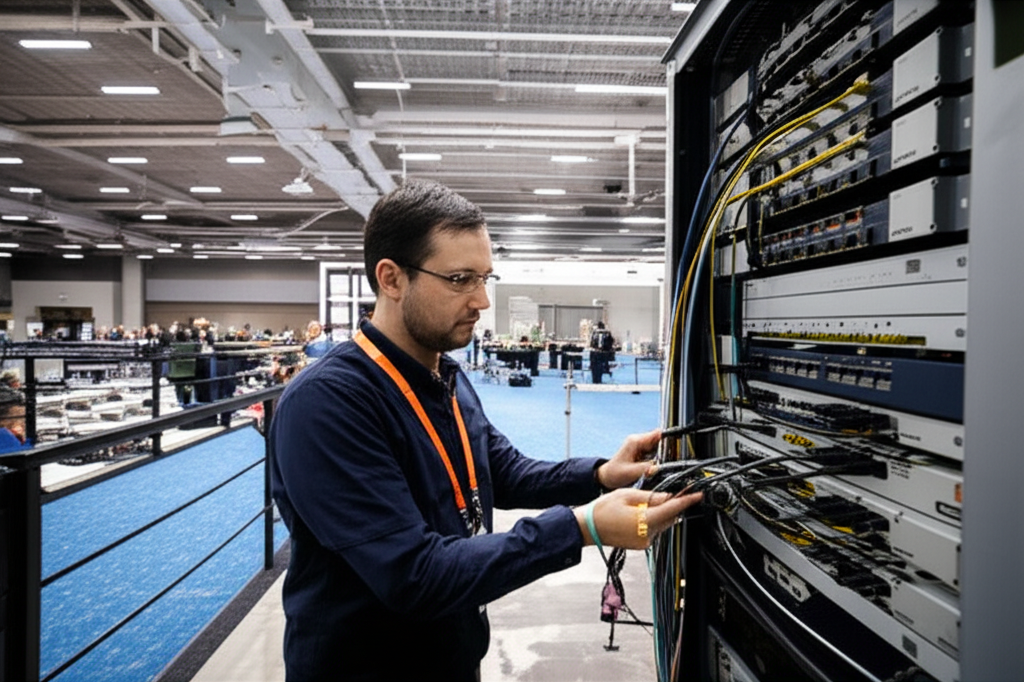
Every structured cabling job terminates in a comms room (or at least a lockable wall-mounted cabinet for smaller offices). This is the heart of the network and deserves proper treatment: a ventilated or air-conditioned rack, clean power ideally on a UPS so the network survives brief outages, cable management that keeps patch leads tidy and airflow open, and clear labelling. Desk cables land on patch panels; short patch leads connect the panel to the switches. This patch-panel discipline is what lets you move a staff member, re-purpose a room, or troubleshoot a fault in minutes rather than tracing cables through a ceiling. In a multi-floor office each floor gets its own small comms cabinet (an intermediate distribution frame) that trunks back to a main comms room (the main distribution frame) over fibre.
Put the network on a UPS
A modest uninterruptible power supply for the comms room rack is one of the highest-value additions you can make. It keeps your switches, firewall and access points alive through the brief power blips common in Malaysian commercial buildings, so calls do not drop and the network does not need a five-minute reboot every time the grid hiccups. Size it to carry the rack for at least 10–15 minutes — long enough to ride out blips and gracefully shut down a NAS if the outage is real.
Step 3: PoE Switching — The Powered Core
Switches are where all those cables come alive. For an office network you want managed, Power-over-Ethernet (PoE) switches — managed so you can configure VLANs, QoS and monitoring; PoE so a single cable both connects and powers your access points, IP phones, cameras and door controllers without a nearby power socket. This single-cable simplicity is transformative: an access point on a ceiling or a camera in a corridor needs only one Cat6A run, no electrician, no ugly power brick.
PoE, PoE+ and PoE++ Explained
PoE comes in tiers, and matching them to your devices matters because a switch has a finite total power budget:
- •PoE (802.3af): up to ~15.4W per port — fine for VoIP phones, basic cameras, and older access points.
- •PoE+ (802.3at): up to ~30W per port — the practical default for modern WiFi 6/6E access points and pan-tilt-zoom cameras.
- •PoE++ (802.3bt): up to ~60W (Type 3) or ~90W (Type 4) — for the most powerful WiFi 7 access points, video bars, and specialised devices.
The trap is the switch's aggregate power budget. A 24-port switch rated at, say, 370W cannot deliver 30W to all 24 ports at once. Add up the real draw of every powered device and choose a switch whose total PoE budget exceeds it with headroom. Under-budgeting PoE causes the most baffling faults — access points that reboot randomly under load, cameras that drop off at night when infrared kicks in — because the switch is quietly starving them of power.
Sizing and Stacking Your Switches
Count your ports honestly: every desk data point, every access point, every camera, every phone that is not softphone-only, every printer, server and NAS. Add 40–50% spare capacity for growth and for the inevitable devices you forgot. Switches come in 8, 16, 24 and 48-port variants; most offices standardise on 24 or 48-port managed PoE+ switches. For resilience and simple management, multiple switches can be stacked or cluster-managed so they behave as one logical unit. Uplink each access layer switch to the core over a high-speed link (10G copper or fibre) so the trunk never becomes the bottleneck when everyone hits the file server or the internet at once.
Step 4: Access Point Placement & Density
Access point (AP) placement is where business WiFi lives or dies. The most common mistake is buying one very powerful router and hoping it blankets the floor. It never does — walls, glass partitions, metal shelving, and the sheer number of competing devices defeat a single radio. Good office WiFi uses multiple ceiling-mounted access points, each covering a modest area, all broadcasting the same network name so devices roam seamlessly as staff walk from their desk to the meeting room.
Coverage vs Capacity Design
There are two ways to think about AP density, and modern offices need both. Coverage design asks "is there signal everywhere?" — it spaces APs to eliminate dead zones. Capacity design asks "can this area handle all the devices in it at once?" — it adds APs in dense areas even where coverage is already fine, because each AP can only serve so many concurrent clients well. An open-plan floor packed with desks, or a training room that fills with 40 laptops for a workshop, needs more APs than raw coverage suggests. As a working guide, a typical open office plans for roughly one AP per 100–150 square metres for coverage, then adds APs in high-density zones. The only way to get this genuinely right is a site survey — walking the floor with measurement tools, or at minimum a predictive survey against the floor plan — which is exactly what a professional installer does before quoting.
- •Ceiling-mount, not desk-mount: APs belong on the ceiling, clear of obstructions, radiating down and out. A unit hidden under a desk or behind a monitor wastes most of its coverage.
- •Overlap for roaming: adjacent APs should overlap slightly so a phone on a call hands off cleanly instead of clinging to a distant AP until the call drops.
- •Channel planning: in a shared building with neighbours' WiFi bleeding through walls, non-overlapping channels and sensible transmit power (turned down, not up) reduce interference far better than brute force.
WiFi 6, WiFi 6E and WiFi 7
For a new office in 2026, WiFi 6 (802.11ax) is the sensible baseline and WiFi 6E or WiFi 7 is the future-proof choice for high-density or high-throughput sites. WiFi 6 dramatically improves performance when many devices are connected — its efficiency features matter far more in a busy office than raw headline speed. WiFi 6E adds the clean 6GHz band, free of the congestion that clogs 2.4 and 5GHz in packed commercial buildings. WiFi 7 pushes throughput and latency further still and is worth specifying for AP models even if not every client can use it yet, because the access points outlive the laptops. The key point: match the AP generation to how long the deployment must last, and always feed WiFi 6E/7 APs with Cat6A and adequate PoE, because their capabilities can exceed a single gigabit link.
Step 5: VLAN Segmentation — Separating Your Traffic
A flat network — where every device can talk to every other device — is the single biggest security and performance liability in a small office. VLANs (virtual LANs) let one physical switch carry several logically separate networks that cannot see each other unless you deliberately allow it at the firewall. This is both a security control and a performance one: it contains broadcast traffic, isolates misbehaving devices, and stops a breach in one zone from spreading. A sensible office VLAN plan looks like this:
- •Staff / corporate VLAN: managed laptops, desktops, printers — the trusted core of the business.
- •Guest VLAN: visitor WiFi and untrusted BYOD, internet-only, no route to any internal resource, ideally with a bandwidth cap and captive portal.
- •VoIP VLAN: desk phones, prioritised with QoS so voice is never delayed by data traffic.
- •CCTV / physical-security VLAN: cameras, NVR, door access — isolated so a compromised camera cannot reach business data, and camera traffic does not flood the staff network.
- •Servers / infrastructure VLAN: NAS, on-site servers, management interfaces — the most protected zone, reachable only by the systems that need it.
- •IoT VLAN: smart TVs, signage, sensors, room panels — chatty consumer gear kept away from everything that matters.
VLANs are where a managed-switch platform earns its keep. On the brands covered below, defining these segments and the rules between them is a matter of a few clicks in a central controller rather than arcane command-line work — which is exactly why the right management platform matters as much as the raw hardware.
Step 6: Firewall, VPN & Remote Work Security
The firewall (often called a gateway or security appliance) is the edge between your office and the internet, and it does far more than the consumer router your landlord provided. A proper office firewall enforces the boundaries between your VLANs, inspects traffic for threats, blocks malicious sites, and — critically for the hybrid era — terminates VPN connections so remote staff and other branches can reach internal resources securely. Modern platforms bundle this into a single managed appliance: UniFi's gateways, Omada's routers, or the enterprise security appliances from Meraki and Aruba all combine routing, firewalling and VPN in one manageable box.
For remote work, a site-to-site VPN links a branch or a home office into the head-office network as if it were local, while a client VPN (or a modern zero-trust remote-access product) lets individual staff reach internal servers securely from anywhere. The security posture also depends on the discipline covered earlier — segmented VLANs, an isolated guest network, and a hardened management plane. No firewall can save a flat network where guest phones share a subnet with the accounting server. If your team is distributed across sites, our wireless connectivity solutions can extend the same secure network to temporary offices, project sites and pop-up locations.
Step 7: Internet, Failover & Business Continuity
An office network is only as reliable as its connection to the outside world, and in a cloud-first business that connection is oxygen. When the fibre goes down, everything goes down — email, video calls, cloud accounting, card payments, even VoIP phones. Yet single-link offices are astonishingly common, and every one of them is one contractor's backhoe or one exchange fault away from a full stop. Business continuity means designing for the day the primary link fails, not pretending it never will.
Bandwidth Planning for a Malaysian Office
Malaysia's fibre market — Unifi, Maxis, Time, CelcomDigi and others — makes symmetric business fibre widely available, and business plans are worth the premium over consumer packages for their static IPs, better support response, and service-level commitments. Size the link to peak demand, not average. A rough planning model: budget 3–5 Mbps of sustained capacity per simultaneous video call, add generous headroom for cloud backups and large file sync, and remember that upload matters as much as download in a video-and-cloud office. A 20–30 person agency that lives on video conferencing and creative file transfer can comfortably justify a 500 Mbps or 1 Gbps symmetric business line; a lighter office of the same size may be fine with less. The point is to plan the number rather than accept whatever the landlord left behind.
Starlink and 4G/5G as Failover Links
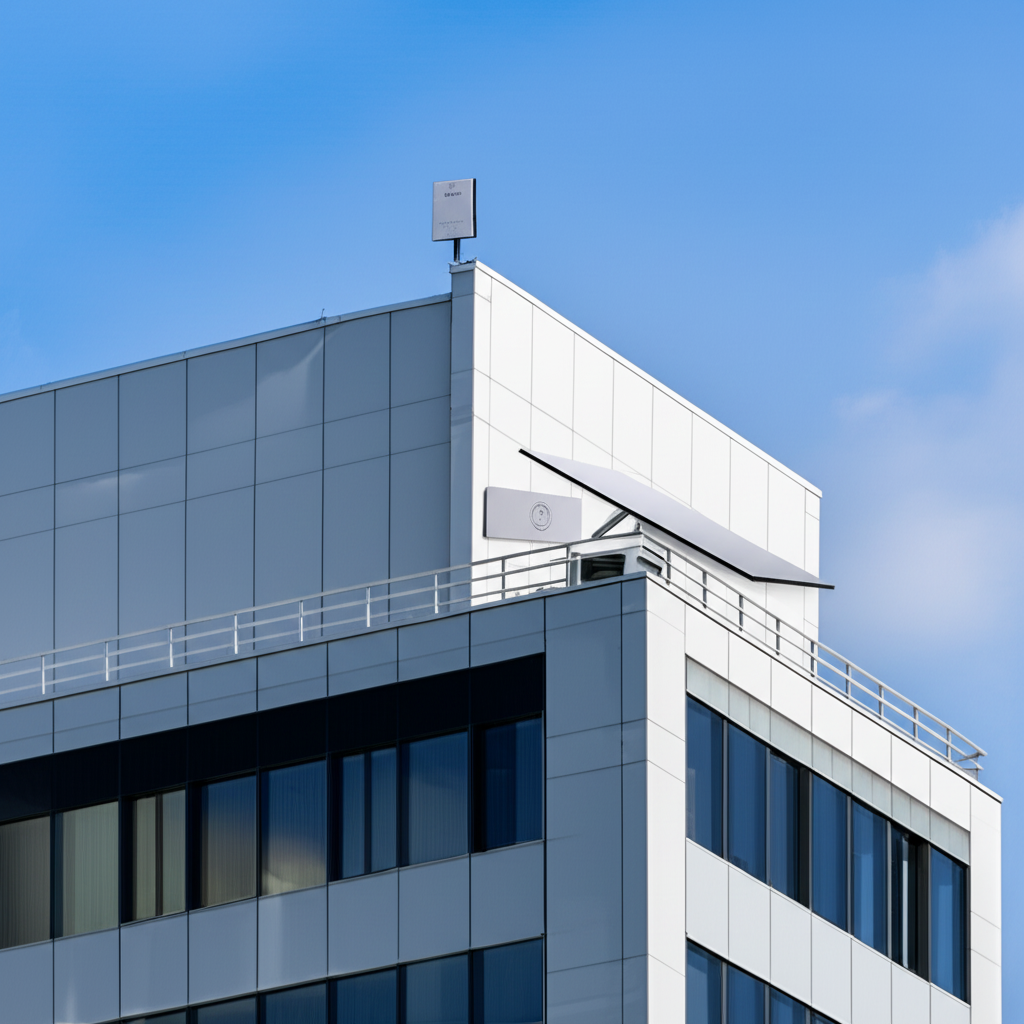
True business continuity comes from a second, independent internet path that takes over automatically when the primary fails — a job the firewall handles with dual-WAN failover. The best backup link is one that does not share the primary's point of failure. A second fibre line from a different provider is ideal but not always available or affordable; that is where cellular and satellite come in. A 4G or 5G modem provides a quick, cheap failover for lighter offices. For sites that cannot tolerate downtime, or in buildings and areas where fixed lines are unreliable, Starlink offers a genuinely independent high-capacity satellite path that keeps a full office online through a fibre outage. Because it does not touch the terrestrial network at all, Starlink is failover that survives the exact events — exchange faults, cut cables, area outages — that take fibre down.
Design failover to be automatic and tested
A backup link that requires someone to manually re-plug a cable during an outage is not business continuity — it is a fire drill. Configure the firewall for automatic dual-WAN failover so traffic reroutes within seconds, and test it deliberately every quarter by unplugging the primary and confirming calls and cloud apps stay up. The offices that survive outages gracefully are the ones that rehearsed for them.
Step 8: Central Management, Monitoring & Redundancy
A network you cannot see is a network you cannot fix. The defining feature of every brand recommended below is a single management platform — a controller, whether on-premises or in the cloud — that shows every switch, access point, firewall and client device in one dashboard. From there you push configuration to dozens of devices at once, spot the AP that is overloaded, see which client is hogging bandwidth, get alerted when a link goes down, and update firmware across the estate without visiting each box. For a growing business this is the difference between a network that a part-time IT person can run and one that needs a specialist on site.
Redundancy and uptime deserve deliberate design at this layer too: the UPS on the comms rack, dual-WAN internet failover, stacked switches so one failure does not black out a floor, and — for the most critical offices — redundant core switches and links. Not every office needs enterprise-grade redundancy, but every office should make a conscious decision about how much downtime it can tolerate and design to that number rather than discovering the answer during an outage. Good monitoring turns problems into scheduled maintenance instead of emergencies.
Equipment Brand Guide: Which Brand for Which Office
This is the section most people come for. The equipment brand you choose shapes cost, capability and how the network is managed for its whole life. There is no single "best" brand — there is the right brand for your office size, budget and whether you have in-house IT. Below are the platforms we deploy and recommend most in Malaysian offices, described neutrally by fit rather than hype. For a far deeper technical teardown of every product line, see our enterprise WiFi equipment brand comparison.
Ubiquiti UniFi — The SME Sweet Spot
For the majority of Malaysian small and medium offices, Ubiquiti UniFi hits the sweet spot. It is a full ecosystem — gateways, switches, access points, cameras, door access, VoIP — all managed from one elegant controller (self-hosted on a UniFi console or a small server), with no per-device licensing or annual subscription. You pay once for the hardware and own it. The management interface is genuinely approachable, so a capable office manager or a small IT team can run VLANs, guest portals and monitoring without deep networking certifications. For a 10-to-100 person office wanting professional capability at a predictable one-off cost, the ubiquiti unifi office setup is our most common recommendation. Its limits appear at very large scale and in mission-critical environments that demand vendor SLAs and 24/7 phone support — which is exactly where the enterprise platforms take over.
TP-Link Omada — The Budget SME Choice
TP-Link Omada occupies a similar space to UniFi — centrally-managed gateways, PoE switches and access points, no subscription — at a generally lower price point. For budget-conscious small offices, retail outlets, clinics and startups that still want proper VLANs, a guest network and central management, the tp-link omada officeplatform delivers real business features at consumer-adjacent prices. It is widely stocked in Malaysia, well supported, and a sensible choice when the priority is getting solid managed networking within a tight fit-out budget. The trade-offs versus UniFi are a somewhat less polished ecosystem and software experience, but for many first offices Omada is the pragmatic, cost-effective answer.
Aruba HPE & Cisco Meraki — Enterprise Cloud-Managed
When an office grows into a larger corporate environment — many floors, hundreds of staff, a dedicated IT department, strict compliance requirements — the calculus shifts toward the enterprise cloud-managed platforms: Aruba (HPE) and Cisco Meraki. These are subscription-licensed: you pay an annual per-device fee on top of the hardware, and in return you get cloud management at scale, deep analytics, advanced security features, guaranteed firmware and threat updates, and enterprise vendor support with service-level agreements. Cisco Meraki in particular is prized for how simply a distributed organisation — many branches, retail chains, corporate campuses — can be managed from a single cloud dashboard. For a meraki office malaysia deployment or an Aruba estate, the subscription cost buys operational simplicity and accountability that large organisations value more than the one-off savings of a self-managed platform. For a 10-person startup it is overkill; for a regulated 300-person corporate with an IT team, it is often exactly right.
Ruckus — High-Density Specialist
Ruckus (now part of CommScope) earns its reputation in the hardest wireless environments: very high client density and physically challenging spaces. Its access points use adaptive antenna technology that focuses signal toward each client, which shines in packed spaces — auditoriums, training centres, event floors, large open-plan trading environments — where dozens or hundreds of devices compete in a small area. For a standard office, Ruckus is more than most need; but where an office includes a genuinely high-density zone (a large town-hall space, a busy call-centre floor, a public-facing area), Ruckus access points are a strong specialist choice, often mixed into a wider deployment rather than used throughout. Cambium Networks is another capable option in this value-for-density niche worth considering.
Which Brand for Which Office Size & Budget
The table below distils the recommendation by office profile. Treat it as a starting point — the right answer always depends on your specific requirements, which is what a proper survey establishes.
| Office profile | Recommended platform | Cost model | Who manages it |
|---|---|---|---|
| Startup / small office (5–25 staff), tight budget | TP-Link Omada | One-off hardware, no subscription | Office manager / outsourced IT |
| SME (10–100 staff), wants polish & ecosystem | Ubiquiti UniFi | One-off hardware, no subscription | Small IT team / outsourced IT |
| Growing corporate (100–300 staff), multi-floor | UniFi (upper tier) or Aruba / Meraki | One-off or subscription | Dedicated IT department |
| Large / multi-site corporate, compliance-heavy | Cisco Meraki or Aruba (HPE) | Subscription (annual per-device) | In-house IT + vendor support |
| Any office with a high-density zone (town hall, call centre) | Ruckus / Cambium (for that zone) | One-off or subscription | IT team / installer |
| Any office needing outage-proof internet | Add Starlink as automatic failover | Rental or purchase + monthly plan | Firewall-managed dual-WAN |
Step 9: Scaling as You Grow
The great advantage of a properly designed, centrally-managed network is that it grows with you. Adding a new bank of desks means terminating the spare cabling you ran on day one and adopting a new switch into the same controller. Taking on the floor upstairs means a new comms cabinet trunked back over fibre and its switches and APs joining the same dashboard. Opening a branch office means standing up the same platform there and linking it over VPN so it appears as one network. This is why the choices made at design time matter so much: a coherent platform scales gracefully, while a pile of mismatched consumer gear must be ripped out and replaced. Plan the office at its three-year size, standardise on one management platform, run generous cabling, and expansion becomes a routine addition rather than a rebuild.
How Translife Plans and Installs Office Networks
Everything above is a lot to hold together — requirements, cabling standards, PoE budgets, wireless surveys, VLAN and firewall design, failover, and brand selection — which is precisely why most businesses bring in a turnkey partner rather than assemble it piecemeal. Translife Group has been designing and installing business connectivity across Malaysia and Singapore since 2005, from our base in Kuala Lumpur, and our network cabling and WiFi installation service takes an office network from empty shell to fully operational in a single accountable engagement.
Our process is deliberately end-to-end: a site survey and requirements workshop to capture headcount, growth plans, meeting rooms, VoIP, CCTV and everything else that will connect; a design that specifies cabling grade, switch sizing, AP placement from a wireless survey, VLAN and firewall architecture, and internet plus failover; professional installation with certified, tested and labelled cabling and tidy comms-room work; and ongoing support so the network stays healthy as you grow. Because we are brand-agnostic, we recommend UniFi, Omada, Aruba, Meraki or Ruckus based on your office size, budget and IT capability — not on what we happen to stock. Where uptime is critical we integrate Starlink failover and dual-WAN so a fibre outage never stops your business, and for temporary or multi-site needs our wireless connectivity solutions extend the same standard everywhere you work.
Common Office Network Mistakes to Avoid
After designing and rescuing networks across Malaysia for two decades, the same avoidable mistakes recur. Knowing them is half the battle:
- •Under-cabling to save cost: running one point per desk, or skipping the AP cabling, to trim the fit-out bill. The saving is trivial; the retrofit cost is not.
- •One big router instead of many APs: hoping a single powerful unit covers the floor. It never does; density and placement beat power every time.
- •A flat network with no VLANs: guests, cameras and payroll all on one subnet — a breach and performance disaster waiting to happen.
- •No internet failover: a single fibre line as the sole lifeline, with no dual-WAN backup, in a cloud-dependent business.
- •Consumer gear in a business setting: home mesh kits and unmanaged switches that cannot do VLANs, QoS or central management, bought because they were cheap and familiar.
- •Undersized PoE budget: a switch that cannot power every device it feeds, causing random reboots that get blamed on the WiFi.
- •No documentation: unlabelled cables and no record of the design, so every future change is archaeology.
Frequently Asked Questions
How much does an office network cost in Malaysia?
Office networks are quoted per project because the cost is driven by floor area, number of data points, cabling grade, how many access points a survey calls for, and the equipment brand and management model you choose. A compact 10-desk office on TP-Link Omada with a single fibre line is a very different figure from a multi-floor corporate on Aruba with redundant links and Starlink failover. The honest answer is that a proper requirements pass and site survey produces an accurate number — and that number, spread over the five-to-seven-year life of the infrastructure, is one of the better returns a business makes.
Is Ubiquiti UniFi good enough for a business, or do I need Cisco?
For the great majority of Malaysian SMEs, UniFi is genuinely good enough — it delivers VLANs, guest networks, VoIP, central management and monitoring at a one-off cost with no subscription. You reach for Cisco Meraki or Aruba when scale, multi-site management, compliance requirements or the need for vendor SLAs and 24/7 support tip the balance — typically larger corporates with dedicated IT departments. Choosing enterprise gear you do not need is a common and expensive mistake; choosing consumer gear when you need business features is the opposite one.
Do I really need wired cabling if WiFi 6 is so fast?
Yes — and more than ever. Every access point is a wired device, so faster WiFi actually demands better cabling to feed it. Beyond that, anything fixed and important — meeting-room video, VoIP phones, servers, NAS, printers, CCTV — belongs on wired links for reliability and consistent speed. WiFi is for the devices that roam. A great wireless experience is built on a great wired backbone, not instead of one.
How do I keep my office online when the fibre goes down?
Add a second, independent internet path and let the firewall fail over to it automatically. For lighter offices a 4G/5G modem works; for outage-critical sites or areas where fixed lines are unreliable, Starlink provides a fully independent satellite link that survives the exact faults that take fibre down. Configure it for automatic dual-WAN failover and test it quarterly so it works when you actually need it.
Conclusion: Design Once, Scale for Years
A great office network is not a product you buy; it is a design you commit to. Start from what the business actually does, run generous structured cabling, power the edge with managed PoE switching, place access points by survey rather than guesswork, segment traffic with VLANs, secure the edge with a real firewall and VPN, and never rely on a single internet link. Choose the equipment brand that fits your office size, budget and IT capability — Omada or UniFi for most SMEs, Aruba or Meraki for larger corporates, Ruckus where density demands it — and manage the whole thing from one dashboard so it stays healthy as you grow. Get these fundamentals right and your network fades into the background, quietly doing its job for years, which is exactly what good infrastructure should do.
Planning a network for a different kind of venue? The same discipline adapts to specialised environments — see our companion guides on planning a school network and WiFi in Malaysia and a hotel network and WiFi in Malaysia, and our enterprise WiFi equipment brand comparison for a deeper look at the hardware.
Ready to plan your office network the right way?
Translife designs and installs turnkey office networks and WiFi across Malaysia and Singapore — survey, design, structured cabling, managed switching, business-grade WiFi, VLAN security and Starlink failover, all in one accountable engagement. Tell us about your office and we'll recommend the right platform and give you a clear, project-based quote.
Request an Office Network Quote →