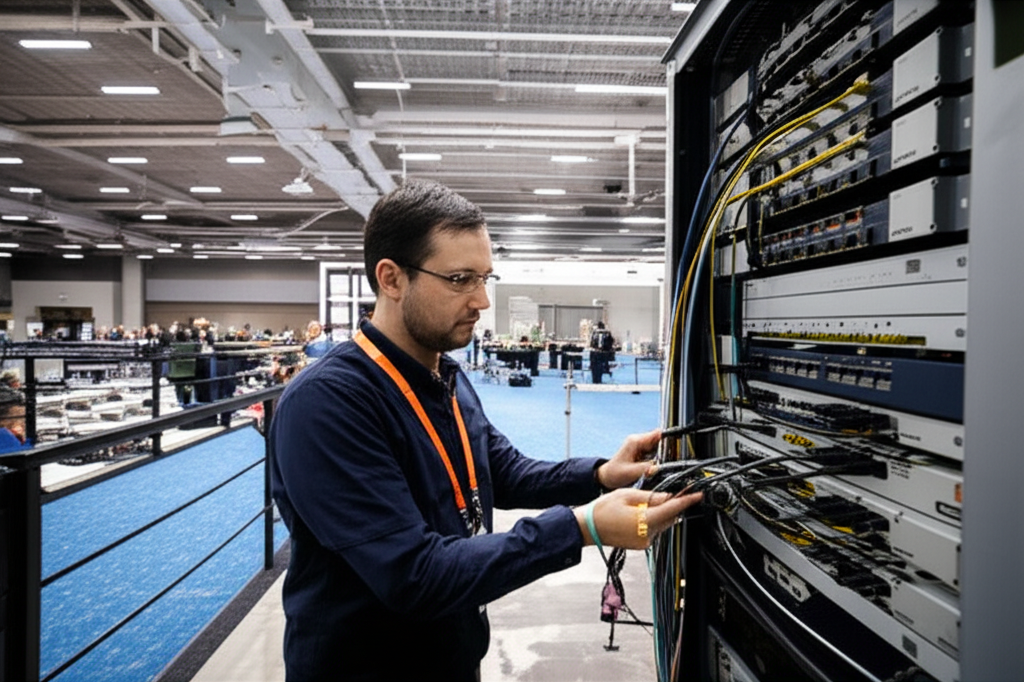
Planning school WiFi in Malaysia is one of the most under-estimated infrastructure projects a campus will ever undertake. A school is not a small office — it is dozens of high-density classrooms, exam halls that must never drop a connection, hostels running all night, CCTV that cannot pause, and hundreds of student devices that all wake up at 8:00 a.m. and hit the network at once. This guide walks you through a complete school network design for Malaysia — from requirements gathering and coverage planning to structured cabling, PoE switching, VLAN segmentation, content filtering, and a frank, brand-by-brand equipment comparison so you can choose the right gear for your school's size and budget.
Whether you run a primary school, a secondary school, a private college, a university, or a chain of tuition centres, the physics and the security rules are the same — only the scale changes. We build campus networks across Malaysia and Singapore, and the schools that get it right all share one trait: they planned the network as a system before anyone ordered a single access point. If you want the short version, jump to the brand and equipment guide, but the earlier sections are what stop you from buying the wrong gear.
Why School Networks Are Different
If you have ever set up WiFi at home or in a small office, it is tempting to assume a school is just that, scaled up. It is not. Three characteristics make campus WiFi a genuinely different engineering problem, and each one breaks a network that was designed like a home setup.
First is device density. In a typical Malaysian classroom of 30 to 40 students, a single lesson using tablets or laptops means 30 to 40 devices in a room the size of a large bedroom. Multiply that by 20 classrooms operating simultaneously and you have 600 to 800 devices in one block. Home routers are engineered for a handful of devices; they simply fall over under this load, no matter how fast the marketing box claims they are.
Second is synchronised demand. Offices trickle onto the network as staff arrive over an hour. Schools do not trickle — the entire student body comes online within minutes of the first bell, and again after every recess. When 500 devices reconnect in the same two-minute window, the bottleneck is rarely raw bandwidth; it is the access points' ability to authenticate and manage that many simultaneous associations. This is why cheap consumer gear looks fine in a demo and collapses on the first real school day.
Third is duty of care. A school is legally and morally responsible for what minors can access on its network. Content filtering, safeguarding, and the ability to audit usage are not optional extras — they are core requirements. An office network that lets adults browse freely would be negligent on a school network. We will treat filtering and segmentation as first-class parts of the design, not afterthoughts bolted on later.
Add exam and e-assessment traffic that must be rock-solid, CCTV that runs 24/7, and boarding hostels that need residential-grade coverage overnight, and you have a network with more distinct roles than most small businesses will ever run. The good news: with a methodical plan, all of it is achievable on a school budget. Let us build that plan step by step.
Step 1: Requirements Gathering
Every failed school network we are called in to rescue skipped this step. Someone bought equipment based on a floor area figure or a headcount, and the design was doomed before installation. Good school network setup starts with a written inventory of what the network must actually do, space by space and role by role.
Map Every Space on Campus
Walk the campus with the floor plans and categorise every area by how it uses the network. Different spaces have wildly different requirements, and lumping them together is the classic mistake.
- •Classrooms — high device density in short bursts, needs strong, evenly spread coverage; the highest-priority space to get right.
- •Computer & science labs — often wired desktops plus wireless tablets; needs solid switching and structured cabling to every workstation.
- •Halls & auditoriums — extreme density during assemblies, exams and events; a genuinely hard RF problem that demands high-density access points.
- •Libraries & study areas — moderate density with heavy sustained use; students stay connected for hours.
- •Administration & staff rooms — lower density but higher security; handles student records, finance and exam material.
- •Hostels & boarding blocks — residential coverage per room, overnight traffic, entertainment and study; effectively a small ISP.
- •Outdoor areas — fields, canteens, walkways and car parks needing CCTV and roaming coverage; requires weatherproof, outdoor-rated hardware.
- •Server / equipment room — the heart of the network; needs proper cooling, power protection and physical security.
Count the Devices, Not the People
Headcount undersells demand every time. A single student in a modern classroom might have a school-issued tablet, a personal phone, and a smartwatch all connected simultaneously. Under a BYOD (bring-your-own-device) policy, staff and older students routinely carry two or three devices each. When you size the network, count devices, and apply a realistic multiplier — commonly 1.5 to 2.5 devices per person depending on your BYOD stance.
Then think about what those devices do. E-learning platforms, video streaming for lessons, cloud-based textbooks, Google Classroom or Microsoft 365, live online classes, and e-assessment all have very different bandwidth and reliability profiles. A network that is fine for browsing will choke the moment an entire year group starts a synchronised video lesson. Write down, per space, the busiest realistic scenario — that is what you design for, not the average.
The Exam and E-Assessment Question
Online exams change everything. If your school runs e-assessments — whether internal digital tests or external online examinations — the network moves from "important" to "mission-critical". A dropped connection during a timed exam is not an inconvenience; it can invalidate a candidate's result and create a serious dispute. Design the exam scenario as its own worst case: every candidate on their own device, all submitting answers in the same window, on a network segment that has guaranteed priority and cannot be starved by streaming elsewhere on campus.
Requirements checklist to complete before you buy anything
For each space: floor area and ceiling height, peak simultaneous device count, primary applications (browsing / video / e-learning / exam / CCTV), whether wired ports are needed, indoor or outdoor, and security sensitivity. Also record: total internet bandwidth available, number of network roles (student / staff / exam / guest / CCTV / IoT), and whether the campus is on fibre or would need a wireless or satellite backhaul. This one-page inventory drives every equipment decision that follows.
Step 2: Coverage & Density Planning
Coverage and density are two different problems, and confusing them is the single most expensive mistake in campus WiFi design. Coverage means "is there a usable signal here?" Density means "can this many devices all use that signal at once?" A school corridor might have a strong signal (good coverage) yet a packed classroom right next to it can be unusable (poor density handling). You solve them differently.
Classroom Density Math
For a standard Malaysian classroom of 30 to 40 students, plan on 30 to 40 active devices at minimum, and up to 60 to 80 if you allow personal phones and smartwatches on top of learning devices. A single well-specified access point can comfortably serve one busy classroom when it is placed inside the room rather than in the corridor. The old habit of hanging one access point in a hallway to cover three or four classrooms is exactly why so many school networks feel slow: the walls attenuate the signal, and one radio is trying to arbitrate between well over a hundred devices.
The modern best practice for high-density teaching spaces is one access point per classroom, mounted on the ceiling inside the room, tuned to lower transmit power so cells are small and do not bleed into neighbouring rooms. Smaller cells with more access points beat fewer, louder access points every time — it is counter-intuitive, but turning the power down and adding units is how you serve dense environments. Use the 5 GHz and, where supported, 6 GHz bands for the bulk of the capacity, and keep 2.4 GHz for reach and older devices only.
Halls, Fields and Open Spaces
A school hall is the hardest RF environment on campus. During an assembly or a mass exam, you might have 500 to 1,500 devices in a single open volume with no walls to help separate cells. This is where general-purpose access points fail and purpose-built high-density units earn their price. In large halls you plan for many access points working together, often with narrower antenna patterns aimed downward, so each unit serves a defined slice of the crowd rather than everyone shouting over everyone. This is precisely the scenario we handle for large gatherings — the same engineering that powers our event WiFi deployments applies directly to exam halls and assembly spaces.
Outdoor fields, canteens and walkways need weatherproof, outdoor-rated access points and careful thought about power and cabling runs. Outdoor coverage is also usually driven by CCTV and roaming needs rather than raw density, so the priority is reliable, wide coverage that hands devices off smoothly as students move between buildings.
Hostels and Boarding Blocks
Boarding hostels behave like a small residential ISP. Coverage must reach into every room through concrete walls, traffic peaks in the evening rather than during class hours, and usage skews heavily toward streaming and personal devices. In-room or in-wall access points that put a radio close to each cluster of rooms outperform a handful of corridor units trying to punch through walls. Because hostel traffic is heavy but not exam-critical, it is also the ideal place to apply per-device bandwidth caps and time-based policies (for example, throttling or curfews after lights-out) so that entertainment traffic never competes with academic or administrative systems.
Step 3: The Wired Backbone & Structured Cabling
Here is the truth that every experienced installer knows and every budget-driven procurement forgets: wireless is only as good as the wires behind it. Every access point is a cable run back to a switch. If the cabling is under-specified or poorly installed, no amount of premium WiFi gear will save the network. The backbone is where you should spend care and money, because it is the part you cannot easily upgrade later — re-cabling a live campus is enormously disruptive. Getting the structured cabling and WiFi installation right the first time is the foundation of everything above it.
Cabling Standards and What to Pull
For a school being built or refurbished today, the sensible default is Category 6A (Cat6A) copper to every access point and workstation. Cat6A supports multi-gigabit speeds over the full 100-metre run and gives you headroom for the next generation of WiFi without re-pulling cable. Ordinary Cat6 can be a cost-saving compromise for shorter runs, but on a project you intend to keep for a decade, the small premium for Cat6A is almost always worth it.
- •Horizontal runs: Cat6A to every access point, wall port, lab workstation and CCTV camera; keep every run under the 90-to-100 metre limit or introduce an intermediate distribution point.
- •Backbone / uplinks: fibre optic between buildings and between floor switches and the core; fibre is immune to the electrical interference and lightning-induced surges that plague long copper runs between blocks.
- •Redundant pathways: where budget allows, run diverse routes to critical blocks so a single damaged conduit does not isolate a building.
- •Labelling & documentation: every cable, port and patch panel labelled and recorded; undocumented cabling is a maintenance nightmare that costs schools dearly for years.
- •Testing & certification: insist on certified cable test results for every run, not just a "it lights up" check; certification is what proves the installation will actually carry the speeds you paid for.
In Malaysia's climate, also plan for heat and humidity in ceiling voids and outdoor conduits. Outdoor and inter-building runs need UV-resistant, gel-filled or armoured cable and proper grounding, because tropical lightning is a real and recurring threat to campus networks.
PoE Switching: Powering the Campus
Power over Ethernet (PoE) lets a single network cable carry both data and electrical power to an access point, IP camera or IP phone. For a school this is transformative: you do not need an electrician to run mains power to every ceiling access point, and you can centralise power protection in the equipment rooms. PoE switching is therefore the backbone of any modern campus network.
- •Budget the wattage: modern WiFi 6/6E access points and pan-tilt-zoom cameras draw real power (PoE+ at ~30W, PoE++ at up to ~60-90W). Add up every powered device and size the switch's total PoE budget with headroom — a switch that runs out of PoE budget silently under-powers devices.
- •Managed, not unmanaged: schools need managed switches so you can create VLANs, apply Quality of Service and monitor ports. Unmanaged switches are a false economy that make segmentation impossible.
- •Uplink speed: ensure each access-layer switch has fast (multi-gig or 10G fibre) uplinks to the core so the aggregate of all its access points is not throttled at the switch itself.
- •UPS protection: put every switch and the core on an uninterruptible power supply so a brief mains dip does not knock the whole campus offline and reboot every access point at once.
The 60/40 rule of school networking budgets
Schools instinctively spend most of the budget on the shiny access points and skimp on cabling and switching. Reverse that instinct. A useful rule of thumb: put at least as much of your budget into structured cabling, PoE switching and the core as you do into the access points themselves. The wireless is replaceable in an afternoon; the cabling is buried in walls for a decade.
Step 4: Access Point Placement
Placement is where theory meets the building. The golden rule is to place access points where the people (and their devices) actually are, not where cabling happens to be convenient. A few principles that consistently produce good results in schools:
- •Inside the room, on the ceiling. For classrooms, mount the access point centrally on the ceiling of the room it serves, not in the corridor. Walls attenuate signal dramatically, and corridor mounting is the number-one cause of weak classroom WiFi.
- •Lower the power, add units. In dense areas, reduce transmit power so each cell is small and clean. This lets adjacent rooms reuse channels without interfering.
- •Plan channels deliberately. With many access points close together, a channel plan prevents them from stepping on each other. Good controllers automate this, but it still needs a sane starting design.
- •Mind the materials. Concrete pillars, metal shelving in labs, mirrored surfaces and thick reinforced walls all block signal. A site survey catches these before they surprise you.
- •Directional units for halls and outdoors. Large open spaces benefit from access points with focused antenna patterns that aim coverage where the crowd is.
A proper predictive and on-site RF survey — walking the campus with measurement tools — turns placement from guesswork into engineering. It is the difference between a network that works on paper and one that works on results day. This survey-first discipline is central to how we approach every wireless connectivity project.
Step 5: VLAN Segmentation & Network Security
If there is one section of this guide that separates an amateur school network from a professional one, it is this. A flat network — where every device can see every other device — is a security and performance disaster on a campus. VLANs (Virtual Local Area Networks) let you carve one physical network into logically isolated segments, each with its own rules. Students cannot reach the finance server, CCTV cannot be tampered with from a student tablet, and a compromised IoT gadget cannot spread to the exam network.
A sensible baseline segmentation for a Malaysian school looks like this — and every one of these should be its own VLAN with firewall rules controlling what can talk to what:
- •Student VLAN — filtered internet access, isolated from staff and admin systems, per-device bandwidth policies, no peer-to-peer visibility between student devices.
- •Staff VLAN — trusted access to teaching resources and printers, still separated from the most sensitive admin systems.
- •Exam / e-assessment VLAN — locked down, prioritised, reachable only by approved devices and the exam platform; the highest-priority segment during assessments.
- •Guest VLAN — for visitors, parents and events; fully isolated from all internal resources, internet-only, with its own portal.
- •CCTV / physical security VLAN — cameras and recorders isolated so footage cannot be intercepted or the system attacked from the general network.
- •IoT / building services VLAN — smart boards, air-conditioning controllers, projectors and door systems quarantined so a weak IoT device cannot become a doorway into the whole campus.
- •Admin / management VLAN — the network the switches, access points and controllers use to talk to each other; reachable only by IT, never by students.
Segmentation is not just security theatre — it also improves performance. Broadcast traffic is contained within each VLAN instead of flooding the whole campus, and you can apply Quality of Service so that exam and administrative traffic always beats video streaming when the network is under pressure. Every serious platform we discuss in the brand guide supports VLANs and inter-VLAN firewalling; the cheap consumer gear that schools are sometimes tempted by does not, which is another reason to buy proper managed equipment.
Step 6: Content Filtering & Student Safeguarding
For a school, content filtering is not a feature — it is a responsibility. A campus network gives minors internet access, and the institution must ensure that access is appropriate and auditable. Malaysian schools should treat safeguarding as a core design requirement, not a plugin added after complaints arrive.
Effective filtering usually combines several layers rather than relying on any single tool:
- •DNS-level filtering — a filtered DNS resolver (often a school-focused service) blocks known adult, malware and gambling domains network-wide with minimal overhead; the simplest first layer.
- •Category-based web filtering — a firewall or gateway that classifies sites into categories and enforces different rules per VLAN, so students get a stricter policy than staff.
- •Time and application policies — throttling or blocking games and social media during class hours, and relaxing rules in hostels after study time.
- •Safe-search enforcement — forcing search engines and video platforms into their safe modes so filtering cannot be trivially bypassed.
- •Logging and reporting — retaining who-accessed-what records (respecting privacy law) so incidents can be investigated and patterns spotted.
The right place to enforce most filtering is at the internet gateway or firewall, applied per VLAN, so the policy follows the role rather than the individual access point. This is another reason the VLAN design in the previous step matters so much: without proper segmentation, you cannot give students a stricter policy than teachers. Whatever tools you choose, review the filtering policy regularly with the school leadership — safeguarding expectations evolve, and so should the rules.
Step 7: Captive Portal & Authentication
Authentication answers the question "who is allowed on the network, and how do we know?" A school typically needs several answers for different populations, and getting this layer right makes day-to-day management dramatically easier.
- •Staff and students — the gold standard is 802.1X with each person logging in using their existing school directory credentials (for example, their Google Workspace or Microsoft 365 account). This ties network access to identity, makes it easy to revoke a leaver, and places each user automatically into the right VLAN.
- •Guests and parents — a captive portal (the login page that appears when you join the WiFi) with a simple splash screen, terms of use, and either a shared password, a self-service sign-up, or a voucher system for events.
- •Shared and fixed devices — projectors, smart boards and lab desktops can use certificate-based or MAC-based authentication so they join automatically without a person typing a password.
A captive portal also gives you a place to display an acceptable-use policy that users must accept, and to brand the guest experience for open days and events. For larger schools, a RADIUS server (built into most of the platforms below or run separately) is what makes directory-based 802.1X authentication work. The payoff is enormous: instead of sharing one WiFi password that leaks within a week, every user has their own identity, their own policy, and their own audit trail.
Step 8: Bandwidth & Internet Plans
All the internal engineering in the world cannot manufacture bandwidth you do not buy. Sizing the internet connection is a balance between what your applications need and what is realistically available at your site. In urban Malaysia, business fibre from providers such as TM, Maxis, Time and others is widely available at generous speeds; in rural areas the picture is very different, which we address in the Starlink section.
A few principles for getting the internet plan right:
- •Size for peak, not average. The connection must survive the busiest moment — a whole year group in a synchronised video lesson or an exam upload window — not the quiet average across the day.
- •Prioritise with Quality of Service. Even a large pipe gets congested; QoS ensures exam and administrative traffic is served before recreational streaming when things get tight.
- •Get a business plan, not consumer. Business fibre offers better contention ratios, support response times and often a static IP — all of which matter for a school running its own services.
- •Cache and localise where possible. Content that many devices fetch (updates, common learning resources) benefits from local caching so you are not paying for the same data hundreds of times.
Do not fall into the trap of assuming a headline speed solves everything. A 1 Gbps line shared badly, with no QoS and a flat network, will feel worse than a smaller line that is well managed and properly prioritised. The engineering inside the campus is what turns raw bandwidth into a reliable experience.
Step 9: Redundancy & Uptime
A school network that goes down during an online exam or a parent-teacher evening is more than an inconvenience — it damages trust and can invalidate results. Redundancy is about deciding, in advance, which failures you can tolerate and which you cannot, then spending accordingly.
- •Dual internet links — a second connection from a different provider (or a different technology such as fixed wireless or satellite) with automatic failover so an outage on one line does not take the school offline.
- •Power protection — UPS units on the core and every access-layer switch, and ideally a generator for the server room, so mains fluctuations (common in parts of Malaysia) do not cascade into a full network reboot.
- •Redundant core paths — where budget allows, dual links between the core and distribution switches so a single cable fault does not isolate a building.
- •Configuration backups — automatic backups of switch, firewall and controller configurations so a device failure can be replaced and restored in minutes rather than rebuilt from memory.
- •Spare hardware — a small stock of the exact access point and switch models on the shelf so a dead unit is swapped the same day.
You do not need to make every part of the network fault-tolerant — that gets expensive fast. The skill is in matching redundancy to consequence: the exam network and the core deserve strong protection; a single access point in a rarely-used store room does not. For schools in areas where fibre is unreliable or absent, a satellite link like Starlink rental makes an excellent failover path even when it is not the primary connection.
Step 10: Managing It Centrally
A campus can easily have fifty to several hundred access points and dozens of switches. Managing each one individually is impossible; the whole point of a modern platform is a single pane of glass that controls everything. This is where the choice of brand really pays off, because central management is what turns a big pile of hardware into one coherent, maintainable network.
Good central management gives your IT team the ability to see every connected device, push a configuration change to hundreds of access points at once, spot a failing unit before users complain, roll out a new SSID or policy across the campus in minutes, and generate the usage reports that school leadership and auditors ask for. The two broad models are on-premises controllers (software or a hardware appliance you run yourself) and cloud management (the vendor hosts the controller and you log in from anywhere). Both are valid; the trade-off is control and one-time cost versus convenience and ongoing subscription. We weigh that trade-off per brand below.
School WiFi Brand & Equipment Guide
This is the section most people came for. Choosing a networking brand for a school is a long-term commitment — it dictates your management tools, your upgrade path, your support experience and, quietly, your budget for years. Below we compare the platforms we actually deploy in Malaysian schools, described neutrally and recommended by fit rather than hype. For an even deeper technical comparison of these ecosystems, see our enterprise WiFi equipment brand comparison.
Ubiquiti UniFi
Ubiquiti's UniFi line is the most popular choice in Malaysian schools for good reason: it hits an excellent balance of price, performance and ease of management. The UniFi controller (run on a small appliance, a server, or the vendor's hosting) gives you genuinely polished central management — seeing every device, pushing changes campus-wide, and generating reports — without a per-device licence fee eating into the budget every year. That no-recurring-licence model is a huge deal for schools funding infrastructure from tight, one-off capital budgets.
UniFi covers the whole stack — access points, PoE switches, gateways and cameras — under one interface, which keeps a school's IT simple. It supports VLANs, guest portals, and directory-based authentication comfortably. Its limits show at the very top end: for a stadium-sized hall packing thousands of devices, dedicated high-density specialists can edge ahead. But for the vast majority of primary schools, secondary schools, colleges and tuition centres, UniFi is the pragmatic sweet spot, and it is what we recommend most often for value-conscious campuses.
TP-Link Omada
TP-Link's Omada platform is the budget-friendly challenger, and it has matured into a very capable option for schools watching every ringgit. Like UniFi, it offers an integrated ecosystem of access points, switches and gateways under a single controller with no mandatory recurring licence, and it supports the essentials a school needs: VLANs, captive portals, and centralised management. Hardware pricing typically undercuts UniFi, which makes Omada attractive for larger campuses covering a lot of classrooms on a fixed budget, or for tuition-centre chains rolling out many small sites.
The trade-offs are modest but real: the management software and ecosystem, while good, are generally considered a step behind UniFi in polish and community depth, and the highest-density behaviour is not its speciality. For a cost-sensitive school with mainstream classroom density, Omada delivers a lot of capable, manageable networking for the money and is a legitimate recommendation, not merely a cheap compromise.
Ruckus (CommScope)
Ruckus has a specific reputation that matters enormously to schools: it is exceptional in high-density, RF-hostile environments. Its access points use adaptive antenna technology that focuses signal toward each client and steers around interference, which translates into markedly better performance in packed exam halls, large lecture theatres and crowded assembly spaces than general-purpose gear. If your make-or-break scenario is 800 candidates all sitting an online exam in one hall, Ruckus is built precisely for that moment.
Ruckus sits in the enterprise tier on price, and its management (on-premises SmartZone or cloud) is more of a professional tool than a hobbyist one. For a university, a large college, or any school where mass online examinations are central to the mission, that investment is justified. Many schools sensibly deploy a mixed estate: value-oriented gear across ordinary classrooms and Ruckus concentrated in the halls and exam spaces where density is brutal.
Aruba (HPE Networking)
Aruba, now part of HPE Networking, is a full enterprise-grade platform aimed at large campuses and universities that need deep features, strong security and serious scale. Its ClearPass access-control system is genuinely best-in-class for policy and authentication — exactly the kind of granular, identity-driven control a large institution with thousands of users and strict compliance needs. Aruba Central provides powerful cloud management across a big, multi-building estate.
The flip side is complexity and cost: Aruba is more than most primary and secondary schools need, and it rewards having capable in-house or partner IT to run it well. For a large university, a big private college group, or an international school with enterprise requirements and budget to match, Aruba is a superb long-term platform. For a modest campus, it is over-specified — a case of buying a truck to fetch groceries.
Cisco Meraki
Cisco Meraki is the cloud-managed, subscription-based option, and its defining strength is operational simplicity across many sites. Everything — access points, switches, security appliances, cameras — is managed from one cloud dashboard, with a genuinely excellent interface, strong analytics, and the ability to oversee dozens of campuses from a single login. For a large education group running many schools or campuses centrally, that fleet-management model is compelling.
The catch that every school must understand up front is the licensing model: Meraki hardware requires an active per-device subscription licence, and if the licence lapses, the equipment stops functioning. That recurring cost is predictable but permanent, which suits organisations that budget operationally but can be a poor fit for a school funded by one-off capital grants. If your finance model and multi-site scale favour a hands-off, cloud-first approach and you can commit to the ongoing licences, Meraki is polished and powerful; if you cannot guarantee the recurring budget, choose a licence-free platform instead.
Which Brand for Which School?
There is no single "best" brand — there is the best fit for your size, density and budget model. The table below is our honest starting-point recommendation. In practice, many schools mix platforms (value gear in classrooms, high-density gear in halls), and a good site survey may shift the answer, but this captures where each brand shines.
| School profile | Recommended brand | Why it fits |
|---|---|---|
| Tuition centre / small private school (budget-first) | TP-Link Omada | Lowest cost, no recurring licence, easy central management for a handful of rooms or many small branches. |
| Primary & secondary school (best all-round value) | Ubiquiti UniFi | Excellent price-to-performance, polished management, no licence fees; the default sweet spot for most campuses. |
| School running heavy online exams / large halls | Ruckus (in halls) | Best-in-class high-density RF for packed exam and assembly spaces; often mixed with UniFi elsewhere. |
| Large university / big college group (enterprise) | Aruba (HPE) | Deep enterprise features, ClearPass access control, scale and security for thousands of users. |
| Multi-campus group wanting hands-off cloud ops | Cisco Meraki | Single cloud dashboard across many sites; ideal if you can commit to the ongoing subscription licences. |
| Rural / remote school with no reliable fibre | Starlink + UniFi/Omada | Satellite internet backhaul feeding a value-oriented campus network; the only viable path where fibre does not reach. |
Starlink for Rural & Remote Schools
A significant number of Malaysian schools — especially in Sabah, Sarawak and the interior of the Peninsula — simply cannot get fibre, or can only get slow, unreliable connections. For these schools, Starlink low-earth-orbit satellite internet has been genuinely transformative. It delivers broadband speeds and low latency to locations that no terrestrial provider will reach economically, turning a school that was effectively offline into one that can run e-learning, cloud classrooms and even online assessments.
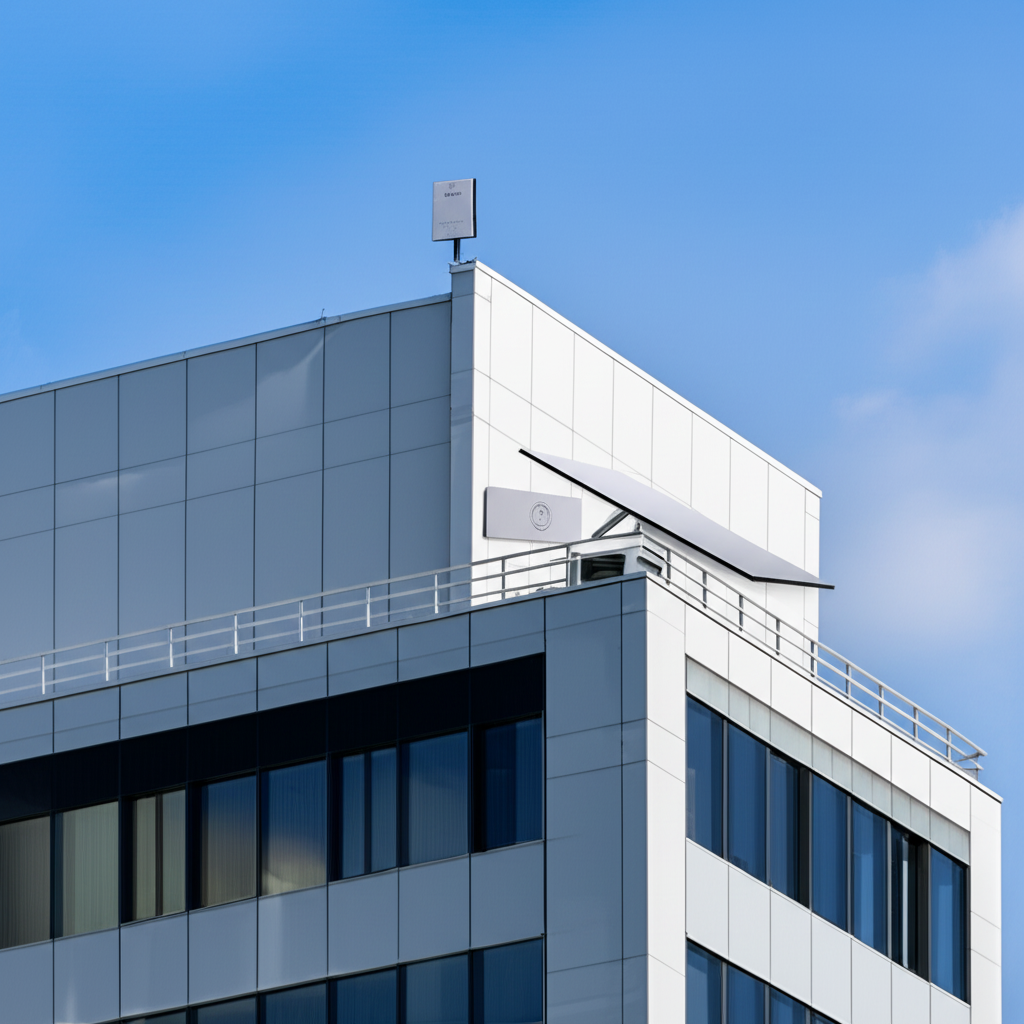
The key insight is that Starlink is the internet source, not the campus network. You still need everything in this guide — cabling, PoE switching, access points, VLANs, filtering — behind the Starlink dish to distribute that connectivity properly across classrooms and to enforce safeguarding. Starlink also makes an excellent secondary or failover link for urban schools where fibre exists but is not fully reliable. We help rural and remote campuses get connected through Starlink rental and then build the campus network that turns that single dish into reliable, filtered WiFi in every classroom. For the broader engineering of connecting hard-to-reach sites, our remote-site internet guide goes deeper.
How Translife Designs & Installs School Networks
Translife Group has been building network and connectivity infrastructure across Malaysia and Singapore since 2005, and schools are among the most rewarding — and demanding — projects we take on. We work as a turnkey partner, which for a school means one accountable team from the first site walk to ongoing support, rather than juggling separate cabling contractors, equipment suppliers and internet providers who each blame the others when something breaks.
Our approach follows the same disciplined sequence we have laid out in this guide:
- •Survey. We walk the campus, study the floor plans, and run a proper RF and requirements survey — classroom by classroom, hall, hostel, labs and outdoor spaces — so the design is grounded in your building, not a template.
- •Design. We produce a coverage and density plan, a structured cabling and switching layout, a VLAN and security architecture, and a brand recommendation matched to your budget and exam needs — with the reasoning explained, not just a shopping list.
- •Deploy. We handle the structured cabling and WiFi installation, PoE switching, access point mounting, VLAN configuration, filtering, captive portals and authentication — installed cleanly and tested, with certified cabling results.
- •Support. We provide central management setup, documentation, and ongoing support so your network stays healthy through every exam season, intake and expansion.
Because we are brand-agnostic, our recommendation is driven by your school's fit — value, density and budget model — not by whichever product carries the best margin. If UniFi is right for your primary school, we say so; if your university halls truly need Ruckus, we say that too. That honesty is why schools keep coming back to us as they grow. Our wireless connectivity and cabling teams work together so the wired backbone and the WiFi are engineered as one system.
Common Mistakes to Avoid
Over years of rescuing and rebuilding school networks, the same avoidable errors come up again and again. Steer clear of these and you are ahead of most campuses in Malaysia:
- •Buying consumer routers to save money. They cannot handle classroom density, offer no VLANs and no central management, and cost more in frustration than they ever saved.
- •Under-spending on cabling. Skimping on structured cabling to afford flashier access points caps the whole network's ceiling and cannot be fixed without re-wiring.
- •Corridor-mounting access points. Hanging one unit in the hallway to cover several classrooms guarantees weak, laggy WiFi in every room.
- •Running one flat network. No VLANs means no real security, no safeguarding separation, and broadcast storms that drag everyone down.
- •Ignoring the exam scenario. Designing for average use and discovering on results day that the hall cannot handle a mass online exam.
- •Choosing a subscription platform without securing the budget. A licence-based system that stops working when funding lapses is a landmine for a capital-funded school.
- •No documentation and no support plan. Undocumented networks become unmaintainable the moment the person who built them leaves.
Frequently Asked Questions
How many access points does a Malaysian school need?
As a planning rule, budget for roughly one access point per classroom for good high-density coverage, plus additional units for halls, libraries, hostels and outdoor areas sized to their peak load. A 20-classroom secondary school block might therefore need 20-plus access points before you even count the shared and outdoor spaces. The exact number always comes from a site survey, not a floor-area formula.
Which is the best value WiFi brand for schools in Malaysia?
For most primary and secondary schools, Ubiquiti UniFi offers the best balance of price, performance and easy central management with no recurring licence. TP-Link Omada is the more budget-focused alternative. Schools with heavy online exams often add Ruckus in the halls, while large universities lean toward Aruba, and multi-campus groups that want cloud simplicity consider Cisco Meraki.
Can a rural school without fibre still run e-learning?
Yes. Starlink satellite internet reaches locations that fibre never will, and when paired with a proper campus network (cabling, switching, access points, filtering) it supports e-learning, cloud classrooms and even online assessments in genuinely remote schools. Starlink provides the internet; the campus network distributes and secures it.
Do we really need VLANs and content filtering?
For a school, yes — both are essential rather than optional. VLAN segmentation keeps students away from sensitive admin and exam systems and contains security incidents, while content filtering is a duty-of-care requirement whenever minors have internet access. Any professional school network design treats them as core, not extras.
Conclusion: Build It Once, Build It Right
A school network is infrastructure your students and staff will rely on every single school day for a decade or more. Get the plan right — thorough requirements gathering, honest density planning, a robust wired backbone, disciplined VLAN segmentation, real content filtering, sensible authentication, and a brand chosen for fit rather than fashion — and you build something that quietly works through every exam season, every intake and every expansion. Cut corners, and you buy years of complaints, rescue projects and re-cabling.
If you are planning a network for a different kind of venue, the same principles adapt — see our companion guides on planning an office network and WiFi in Malaysia and a hotel network and WiFi in Malaysia. Each shares the same engineering backbone, tuned to its own density, security and guest-experience demands.
Planning a school network or campus WiFi upgrade?
Translife designs and installs turnkey school networks across Malaysia and Singapore — survey, design, structured cabling, PoE switching, WiFi, VLANs, filtering and support. Tell us about your campus and we'll recommend the right equipment and a plan that fits your size and budget.
Request a Quote →